
The renewal invoice from your current host lands, and it is a lot higher than the introductory price you signed up on. Or the site has been slow for months and support takes two days to reply. You want to leave, but a website migration sounds like the kind of job that takes the site offline for a weekend and loses half your email.
It doesn’t have to. Done in the right order, a website migration has no downtime at all. Visitors keep seeing a working site and email keeps arriving, while the new copy is built, tested and switched over in the background. This is the order we follow when we move a customer’s site, and it works just as well if you are doing it yourself.
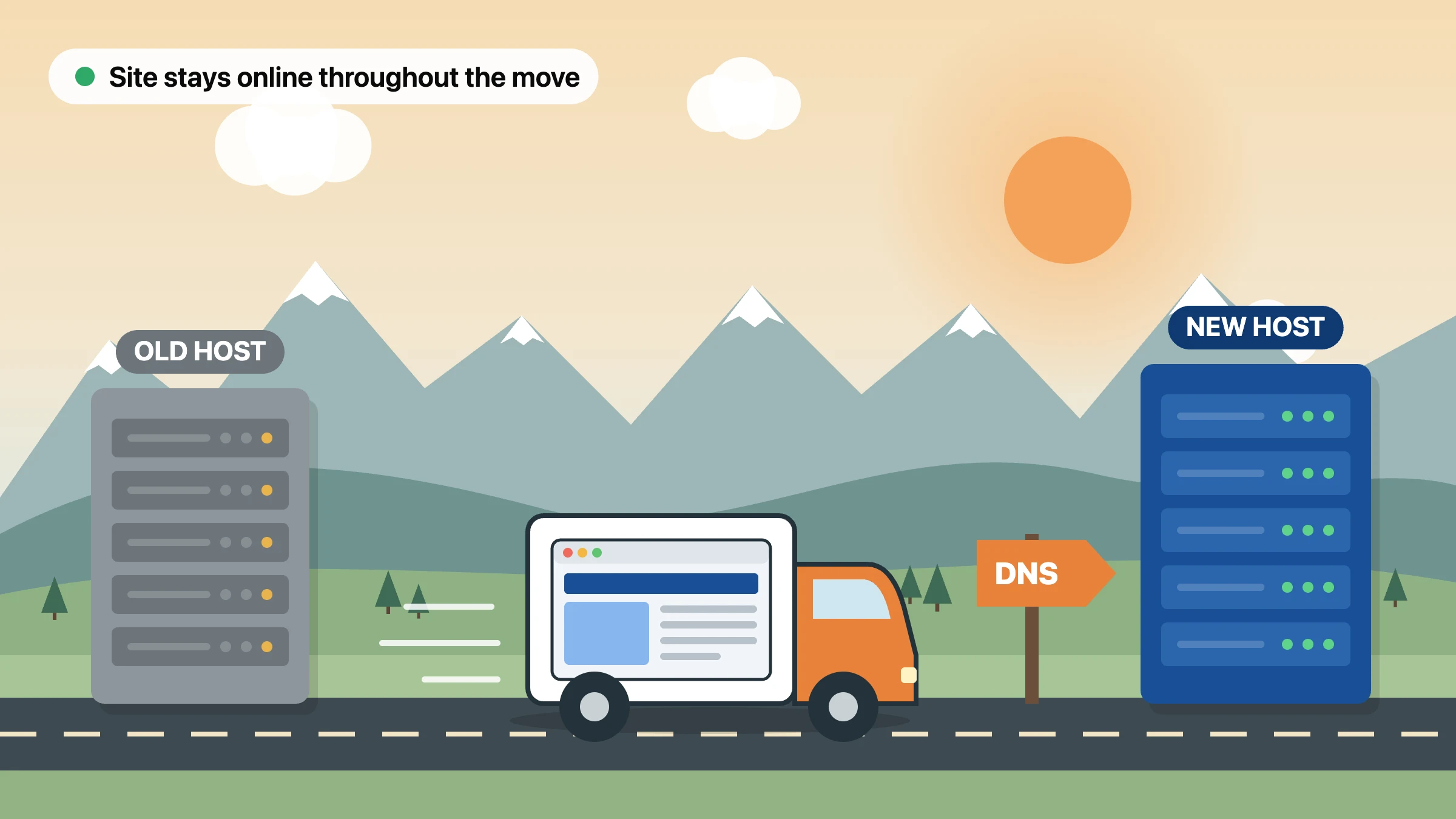
Moving day for a website: the copy is built and tested on the new server first, and DNS only switches once everything works.
Website migration starts with an audit
Before you copy anything, write down everything your current host does for you. Most of the trouble in a website migration comes from something nobody knew was there, such as a mailbox, a scheduled task or a forgotten subdomain.
- Websites and subdomains: the main site, plus anything like shop. or staging. on the same account.
- Email: every mailbox, forwarder and autoresponder. Also check whether email is hosted there at all, since many businesses already use Microsoft 365 or Google Workspace.
- DNS: where it is managed, and a copy of every record.
- Databases: usually one per WordPress install, sometimes more.
- Scheduled tasks: cron jobs that send reports, run backups or clear caches.
- PHP version: note it, so the new server can match.
If you only do one thing on this list, screenshot the DNS zone. Our guide to what DNS is explains the record types if they look like alphabet soup.
Lower your DNS TTL a few days early
Every DNS record carries a TTL, or time to live. It tells other servers how long they can cache the answer before asking again. On cPanel servers the default is usually 14,400 seconds, which is four hours. Change a record while that value is in place, and some visitors keep reaching the old server for up to four hours.
So, two or three days before the website migration, drop the TTL on your main A record and the www record to 300 seconds. Then wait out the old four-hour value, so caches pick up the short one. On switch day, the change reaches most visitors within about five minutes. Afterwards, set the TTL back to normal. Our walkthrough on modifying DNS records in cPanel shows where the TTL field sits.
The website migration itself, step by step
With the audit done and the TTL lowered, the copy is the quick part. Here is the order that keeps the live site untouched until the very end.
- Create the hosting account on the new server and match the PHP version.
- Copy the site files across. On cPanel, a full account backup carries files, databases and email in one archive.
- Import the database, then update the database name, user and password in the site’s config file. For WordPress, that is wp-config.php.
- Create the email accounts with the same addresses, and copy the old mail across.
- Test the site on the new server while DNS still points at the old one.
- Switch DNS.
- Check the site, email and SSL, then leave the old account running.
If both hosts run cPanel, steps two to four can often happen in a single restore. Between different control panels the website migration takes more manual work, but the order stays the same. WordPress also keeps its own notes on moving WordPress, which help if the domain name is changing as well.
Test on the new server before anyone else sees it
This is the step that takes the risk out of a website migration. You can load the copied site from the new server while the rest of the world still sees the old one. The simplest way is a line in your computer’s hosts file that points your domain at the new IP address, for your machine only. We explain it in our guide to previewing a website without updating DNS.
Then click through the site like a customer would. Submit the contact form and check the message arrives. Log in to the admin area, open a few blog posts with images, and run a test checkout if you sell online. Anything broken at this stage costs you nothing, because nobody else can see it yet. Fix it, test again, and only then move on.
Moving email without losing messages
Email worries people most during a website migration, and with reason. During the switch, mail can land on either server for a short while. It depends on which DNS answer the sender’s mail server still has cached.
The fix is simple. Create every mailbox on the new host before you change anything. After the switch, keep the old mailboxes open for a week and check them now and then. If a few messages arrive there late, copy them across. On cPanel you can usually pull old mail over IMAP, or we can do it for you as part of a free migration.
If your email sits with Microsoft 365 or Google Workspace, it doesn’t move at all. You only need to copy the MX, SPF, DKIM and autodiscover records into the new DNS zone exactly as they are. Miss one and mail stops, or it starts landing in spam.
Switching DNS on the day
Pick a quiet time. For most Kiwi businesses that means a weeknight or a Sunday evening. If you sell online or take bookings, pause new orders for an hour, or plan a final database sync. That way no order lands on the old server after the copy.
You have two choices. Changing nameservers moves all of your DNS to the new host in one go. However, nameserver records sit with the registry, and their cache time is out of your hands. Changing only the A records keeps DNS where it is, and with a 300-second TTL the switch is close to instant. Either works, but the A record route is faster to undo if something goes wrong.
Once the domain points at the new server, cPanel’s AutoSSL issues a free certificate, usually within minutes. Check for the padlock before you call it done. Our post on free SSL for NZ websites covers what to do if it lags.
Keep the old host running for a week
Don’t cancel the old account the moment the website migration looks finished. Leave it for at least a week. It catches the odd late email, and it gives you an instant way back if something turns up that testing missed. It also still holds the original files, in case a missing image or plugin setting surfaces later.
Before you cancel, download a full backup of the old account and keep it somewhere safe. Then check that backups are running on the new host. On our servers JetBackup 5 takes care of that, and our guide on restoring backups with JetBackup 5 shows how to roll back a single file or a whole site.
Common website migration mistakes
Most website migrations that go wrong trip over the same few things.
- Cancelling the old hosting before DNS has switched, which takes the site offline.
- Forgetting the email DNS records when moving nameservers.
- Copying the site but not the scheduled tasks, so reports and backups quietly stop.
- Moving to an older PHP version than the site needs.
- Changing the domain name and the host in the same week. Do one, let it settle, then do the other.
Website migration questions we get
Do I need to transfer my domain for a website migration
No. The domain registration and the hosting are separate things. You can move the website, leave the domain with your current registrar, and simply point it at the new server. If you want to move a .nz domain as well, you need its UDAI code from your current registrar, and that can happen later.
How long does a website migration take
For a typical small business site, the copying and testing take a few hours. Add two or three days in front for the TTL change. Large online stores, or accounts with many mailboxes, take longer, mostly because of the testing.
Will moving hosts affect my Google rankings
Not if the domain and URLs stay the same and the site stays up. Google sees the same pages at the same addresses. Rankings drop when URLs change without redirects, or when a site goes down for days.
Need a hand?
When you move to HostMidas, we handle the whole website migration for free, email included. We copy everything, test it on our servers, and agree the switch time with you, so nothing goes offline. Start on our migrations page, compare our NZ hosting plans, or ask a question through contact and support. Support runs 24/7.
See what our customers say about us on Trustpilot.