
A Hamilton gift shop rang us two days into their Christmas push. The site had been fine all winter. Now it crawled every lunchtime, and twice that week the checkout had thrown a 500 error at the worst possible moment. Nobody had changed anything. That is how WordPress resource limits usually announce themselves. You never notice the ceiling until traffic or a plugin pushes you up into it.
Every hosting account has a cap on how much of the server one site may use at once. Shared hosting works precisely because of that cap. It stops one busy site flattening the forty others sitting on the same machine. So the useful question is not whether you have WordPress resource limits. It is where yours sit, how to tell when you are getting close, and which of the errors below means you have gone straight through one.
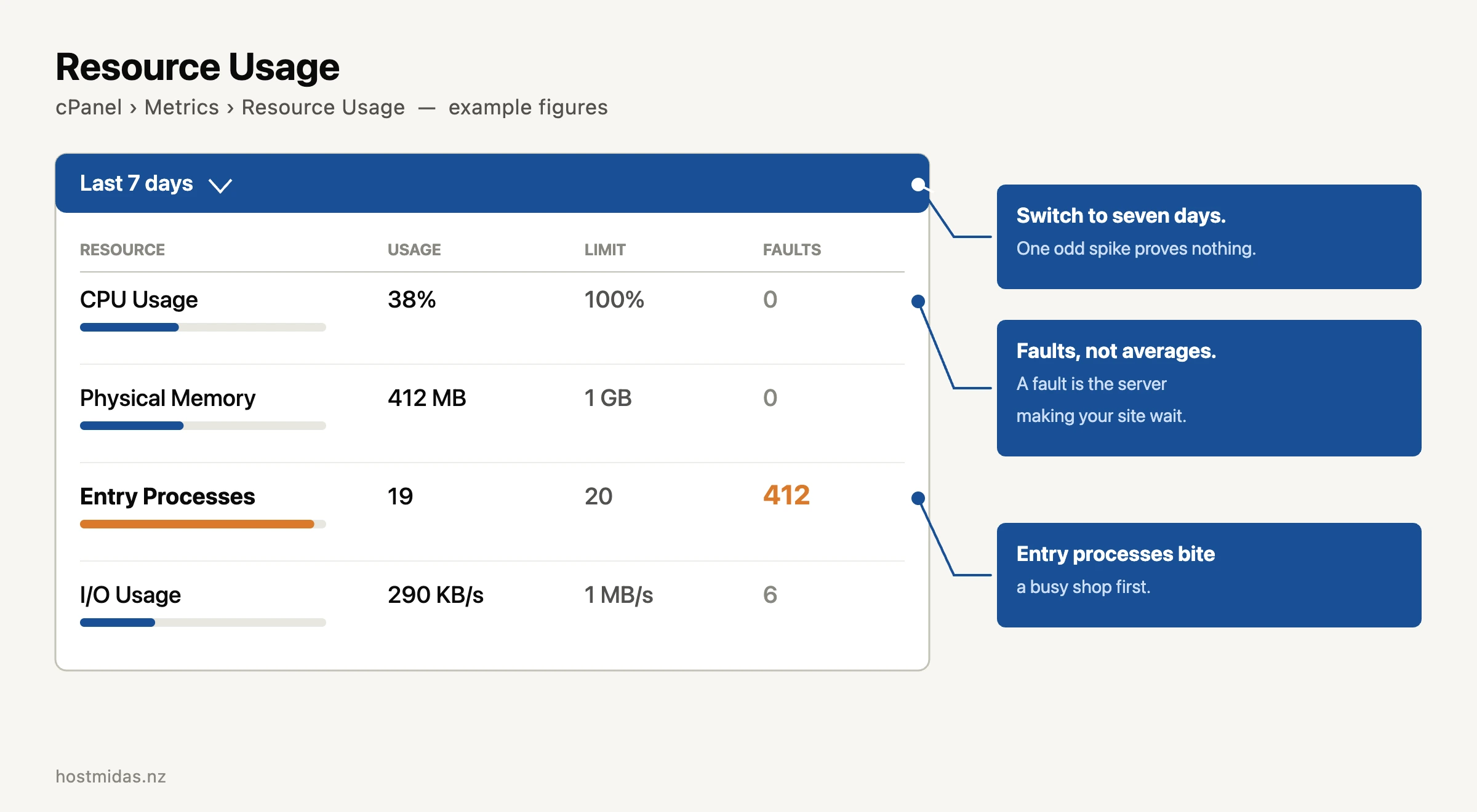
The Resource Usage screen in cPanel, and what each row is actually telling you.
What WordPress resource limits actually measure
WordPress resource limits come down to four numbers. None of them are labelled in plain English, and they fail in quite different ways. That is why the error on screen tells you so much about the cause.
- CPU. Processor time, usually shown as a percentage of one core. Building a page, running a database query and resizing an upload all burn CPU.
- Physical memory. RAM. Every PHP request takes a slice of it while it runs, and heavy plugins take bigger slices.
- Entry processes. How many PHP requests may run at the same instant. This is the one that bites busy shops first.
- I/O. How fast your account may read from and write to the disk, plus how many separate operations it is allowed.
Inodes sit alongside those four. An inode is simply one file, and a WordPress install with a dozen plugins already holds tens of thousands of them. Backup plugins that keep every archive inside your own account are the usual reason a site runs out.
Where to read your WordPress resource limits in cPanel
Open Resource Usage in cPanel. The default view shows the last 24 hours against your WordPress resource limits, with a line telling you whether anything was throttled. Switch it to the last seven days before you read too much into a single graph. One spike on a Tuesday afternoon means very little. The same spike every weekday at ten in the morning means a great deal.
Look at the faults column rather than the averages. A fault is a moment when your account asked for more than it was allowed and the server made it wait. Averages hide those entirely, because a site can sit at twelve percent all day and still stall for four seconds at every peak. If that column is empty, your WordPress resource limits are not the problem and the site itself is worth a closer look.
The white screen and the memory exhausted error
"Allowed memory size exhausted" is the message we see most often, usually with a file path trailing after it. Sometimes there is no message at all, just a white page. Both are the same fault. PHP asked for more memory than it was allowed and gave up mid-request.
This ceiling sits apart from the WordPress resource limits on your account, which catches people out. WordPress sets its own limit inside wp-config.php and defaults to 40MB for a single site. Most hosts set the PHP limit well above that, so the WordPress figure is often the one holding you back. You can raise it with one line, and the WordPress handbook on editing wp-config.php has the exact syntax. Raising it once is a fair first move. Raising it twice in a month means something on the site is misbehaving.
500, 503 and 508: what each error is telling you
Three errors point at WordPress resource limits more often than anything else. People use them interchangeably in conversation, yet they mean quite different things, and the difference saves a lot of guessing.
- 500 Internal Server Error. PHP stopped part way through. Usually memory, a fatal error in a plugin, or a bad line in .htaccess. Read the error log first.
- 503 Service Unavailable. The server is alive but could not hand your request to PHP. Often entry processes, occasionally a maintenance file left behind by a failed update.
- 508 Resource Limit Is Reached. The plainest of the three. Your account hit a cap and the request was refused outright.
Timing narrows it down further. A 508 at two in the morning is nearly always a backup or a cron job. A 508 at eleven is real visitors. The WordPress handbook keeps a list of common WordPress errors with what each one means. If the site is down rather than slow, our guide on what to check when a website is down works through the causes in order.
What actually burns through WordPress resource limits
Almost everything that eats through WordPress resource limits falls into a short list, and after enough of these calls the same culprits keep turning up. Related-posts plugins that query the entire database on every page load. Sliders that generate images on the fly instead of once. Backup plugins still scheduled for ten in the morning because nobody changed the default. Online shops with no page cache, where every single visit builds the page from scratch.
Bots deserve a mention as well. A badly behaved crawler can hit a few thousand URLs an hour, and your server treats each one as a genuine visitor. We have seen accounts where most of the CPU went to traffic that was never going to buy anything. Blocking that is usually quicker than upgrading.
Then there is wp-cron. WordPress runs its scheduled tasks on page loads by default, so a quiet site runs them rarely and a busy site runs them constantly. Moving that job to a real cron entry in cPanel costs nothing and takes the worst spikes off.
Six changes that cut resource usage this week
Roughly in order of how much they help against how long they take:
- Turn on a page cache. On our servers that is LiteSpeed Cache, and it is the biggest single win for most sites. Our notes on LiteSpeed against Apache explain why it helps so much.
- Reschedule backups to three in the morning, and keep the copies off the server rather than inside your own account.
- Delete plugins you are not using. Deactivated is not the same as gone, and the files still count against inodes.
- Replace anything that queries on every page load with a version that caches its results.
- Switch wp-cron over to a real cron job.
- Block the crawlers you do not need, then put Cloudflare in front of the site.
Most sites we look at get back under the ceiling on the first two alone. Our longer guide on speeding up a WordPress site covers the same ground from the visitor's side. A site cleaned up for speed almost always sits further below its WordPress resource limits as a by-product.
When you have genuinely outgrown the plan
Sometimes none of that helps, and in its own way that is good news. A site that is tidy, cached and still hitting its WordPress resource limits every weekday is a site doing real business. The limit is then doing exactly what it was designed to do, and the answer is a bigger plan rather than another afternoon of tuning.
The signal to watch is faults that recur at the same hour on days when nothing unusual happened. One sale weekend is not a pattern. Three ordinary Tuesdays in a row is. Moving up a tier on WordPress hosting costs far less than the orders you lose while the checkout stalls, and the move itself takes minutes because the account stays where it is.
WordPress resource limits: questions we get asked
How do I know if I have hit my WordPress resource limits?
Open Resource Usage in cPanel and look for faults rather than averages. A fault means the server made your site wait. If you are seeing 508 errors, or pages that load fine at night and crawl at midday, you are already at your WordPress resource limits.
Does more memory make my site faster?
No, and this one trips up a lot of people. Memory stops a page failing partway through. It does nothing to make the page build any quicker. Caching and fewer database queries are what make a site faster.
Will caching fix a resource problem on its own?
Usually, for a site that serves the same pages to everyone. It helps less on a shop, because logged-in customers and anything with a cart in it skip the cache by design. Those sites need the plugin tidy-up as well.
Need a hand?
If the graphs are not making sense, our support team runs 24/7 and will tell you which of your WordPress resource limits is actually being hit. We can usually name the plugin causing it inside an hour. Our NZ hosting plans keep sites, email and backups on servers here, and migrations are free if you are moving in. The knowledge base has step-by-step guides for the cPanel screens above. You can also read what our customers say about us on Trustpilot.