
Your website felt quick on launch day. Then a booking plugin went in, the photo gallery grew, and now a customer in Christchurch waits four seconds for your homepage to appear. If that sounds familiar, here is the encouraging part. You can usually speed up a WordPress site in a single afternoon, without hiring a developer and without rebuilding anything.
Speed is a commercial problem, not just a technical one. Google folds page experience signals into how it ranks pages, and shoppers simply leave when a page stalls. Fortunately, slow Kiwi websites tend to fail for the same handful of reasons. So we will work through the ways to speed up a WordPress site in the order that pays off fastest. We start with the step most people skip.
Measure first, so you stop guessing
Before you install a single optimisation plugin, get a baseline. After all, you cannot prove you have managed to speed up a WordPress site if you never measured it beforehand. Run your homepage and your two busiest pages through Google PageSpeed Insights. Then run the same pages through GTmetrix and set the test location to Sydney, because it sits closest to most New Zealand audiences.
Two numbers deserve your attention. Time to First Byte, or TTFB, tells you how long your server took to respond at all. Largest Contentful Paint, or LCP, tells you when the main content actually appeared on screen. If TTFB sits above roughly 600 milliseconds, your bottleneck is the server. But if TTFB looks healthy while LCP drags, the culprit is almost always images or scripts.
Test each page three times as well. The first visit often lands before the cache warms up, so a single result can send you chasing a problem that does not exist.
Your server location sets the speed floor
Distance costs time, and no plugin repeals physics. So we pinged a handful of New Zealand business websites from a local connection to see how much it actually matters. The sites hosted here in New Zealand answered in about 21 to 23 milliseconds. The ones hosted in Australia took roughly 44 milliseconds.
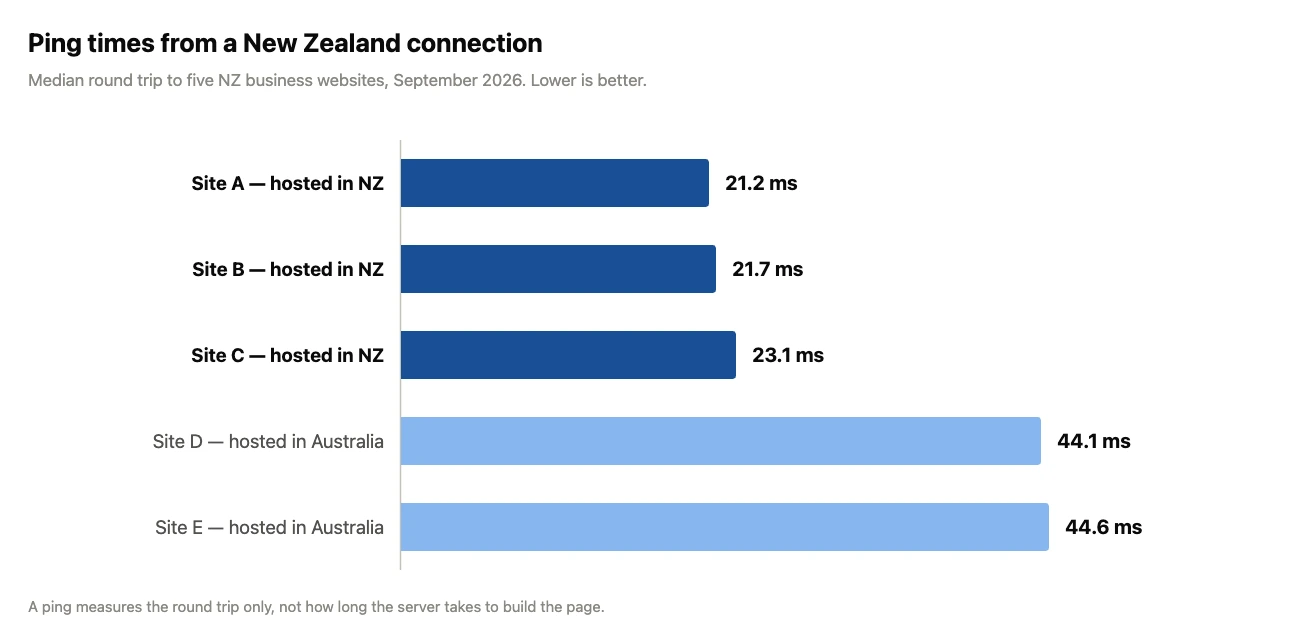
Twenty milliseconds sounds like nothing. But that gap repeats on every request your page makes, and a typical page makes dozens. A ping only measures the round trip, not how long your server takes to build the page. Still, it sets the floor that everything else gets added to.
One honest note about that test. The fastest site in it is not ours, it belongs to another New Zealand host. What matters is where the server physically sits, not whose logo appears on the invoice. So if your host sits offshore, you pay that tax before your site does any work at all, and no attempt to speed up a WordPress site removes it completely. We compared the trade-offs in our guide to NZ hosting versus Australian hosting. Caching hides some of that distance, though it never removes it.
Caching is the biggest win for the least effort
Without caching, WordPress rebuilds every page from the database on every single visit. With caching, it hands over a finished copy instead. For most businesses, caching is the quickest way to speed up a WordPress site, and it delivers the largest single improvement you will see all day.
On our plans, LiteSpeed handles this particularly well, and the free LiteSpeed Cache plugin talks straight to the server rather than imitating caching in PHP. Turn on page caching first. Then enable browser caching, and add object caching if you run a shop or a membership area. We explained the reasoning behind the switch in LiteSpeed vs Apache.
A content delivery network helps too, especially for visitors outside the country. Our Cloudflare setup guide walks through it step by step.
Fix the images you have already uploaded
Images are usually the heaviest thing on a page. Happily, they are also the easiest thing to fix, which makes compression the second quickest way to speed up your WordPress site. Three habits solve most of the problem.
- Resize before you upload. A banner displayed at 1,600 pixels wide does not need to be 5,000 pixels wide.
- Convert to WebP. It usually cuts file size by a quarter or more, with no visible loss of quality.
- Lazy load anything below the fold, so the browser fetches those images only once a visitor scrolls down to them.
While you are in the media library, write real alt text for each image. Screen readers depend on it, and it gives Google something to read as well.
Audit the plugins you forgot you installed
Every active plugin adds database queries, scripts and stylesheets, so a cluttered install quietly undoes your work to speed up a WordPress site. First, deactivate anything you no longer use. Then look hard at what remains. Install Query Monitor temporarily and it will show you exactly which plugins are generating your slowest queries.
Page builders deserve an honest mention here. Divi and Elementor are genuinely useful tools, yet they ship a lot of CSS and JavaScript with every page. So if a page needs nothing more than text and one image, build it with standard blocks instead.
Move to a current version of PHP
Old PHP is slow PHP, so a version upgrade is one of the cheapest ways to speed up your WordPress site. Moving from PHP 7.4 to PHP 8.2 or later often improves response times noticeably, and it costs you nothing. In cPanel, you can switch versions under Select PHP Version.
Check plugin compatibility first, though. Test the change on a staging copy rather than your live site. After that, update WordPress core, your plugins and your theme in the same sitting, so you are only ever testing one known state.
How to speed up a WordPress site without breaking it
Every change above is reversible, provided you prepare. Take a backup before you begin. Our guide to restoring backups with JetBackup 5 covers getting your site back if something misfires.
Then change one thing at a time and re-test. Enable caching, measure. Compress your images, measure again. When you batch five changes together and the site breaks, you have no idea which one caused it.
A realistic order of work
- Take a backup, then record your current TTFB and LCP.
- Enable page caching and test again.
- Compress and resize your ten largest images.
- Deactivate every plugin you no longer use.
- Move to a current PHP version on staging first, then live.
- Add a CDN if you serve visitors offshore.
- Review your hosting if TTFB remains stubborn.
Most websites gain the bulk of their improvement in steps two and three. But if you have worked through the whole list and TTFB still will not budge, the server itself is your constraint. That is the point where changing host genuinely helps, rather than simply feeling like progress.
Frequently asked questions
How fast should my pages load?
Aim for an LCP under 2.5 seconds on mobile for visitors in your main market. Under two seconds feels genuinely quick to a real person.
Will a CDN speed up a WordPress site for New Zealand visitors?
Only a little, if your server already sits locally, because the content has a short trip to make. A CDN earns its keep when your audience spreads across several countries.
Does changing host mean downtime?
It should not. A migration done properly copies your site across, tests it on a temporary address, and only changes DNS once everything works correctly.
Need a hand?
If you would rather hand this over, our team can look at your site for you. We will tell you plainly whether the fix is caching, images or the server underneath. Whether you would rather speed up your WordPress site yourself or leave it with us, we will point you at the real bottleneck first. We handle website and email migrations for new customers, our servers sit here in New Zealand, and support runs around the clock. Either contact our support team or browse our NZ hosting plans to see what suits you. Curious what our customers say? Have a look at our Trustpilot reviews.